Histogram
Shows an RGB histogram and zebra stripes on the VirtualLens 2 screen. They never appear in photos. Both are in More > Monitor.
Histogram
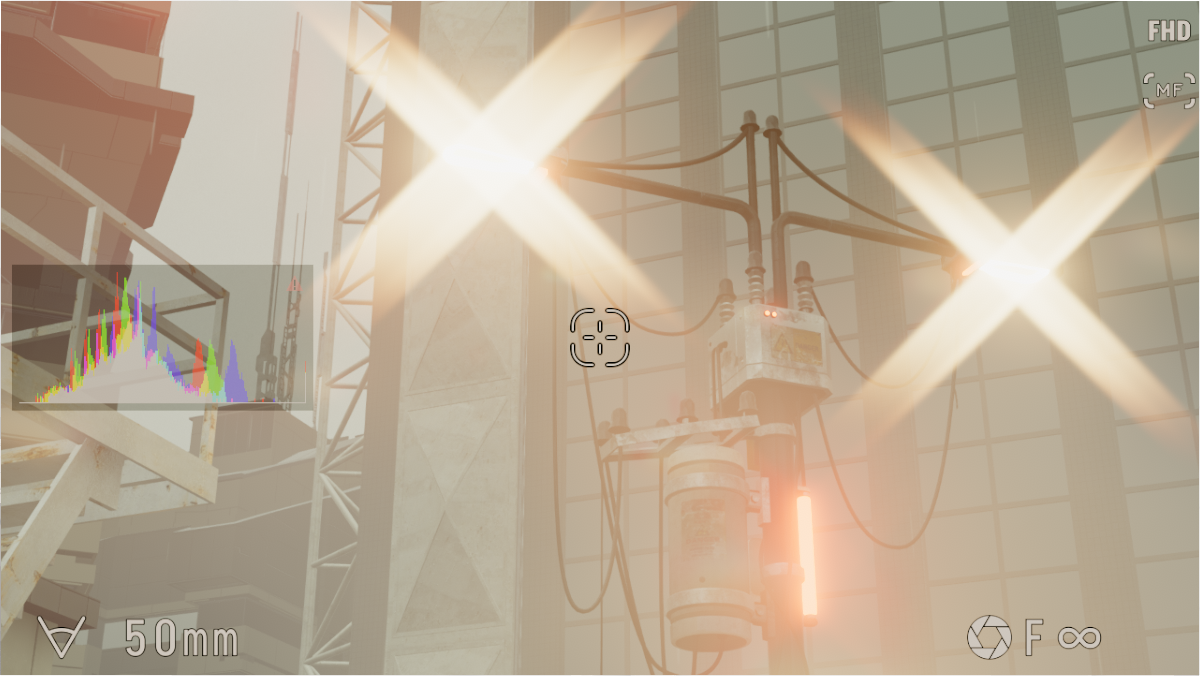
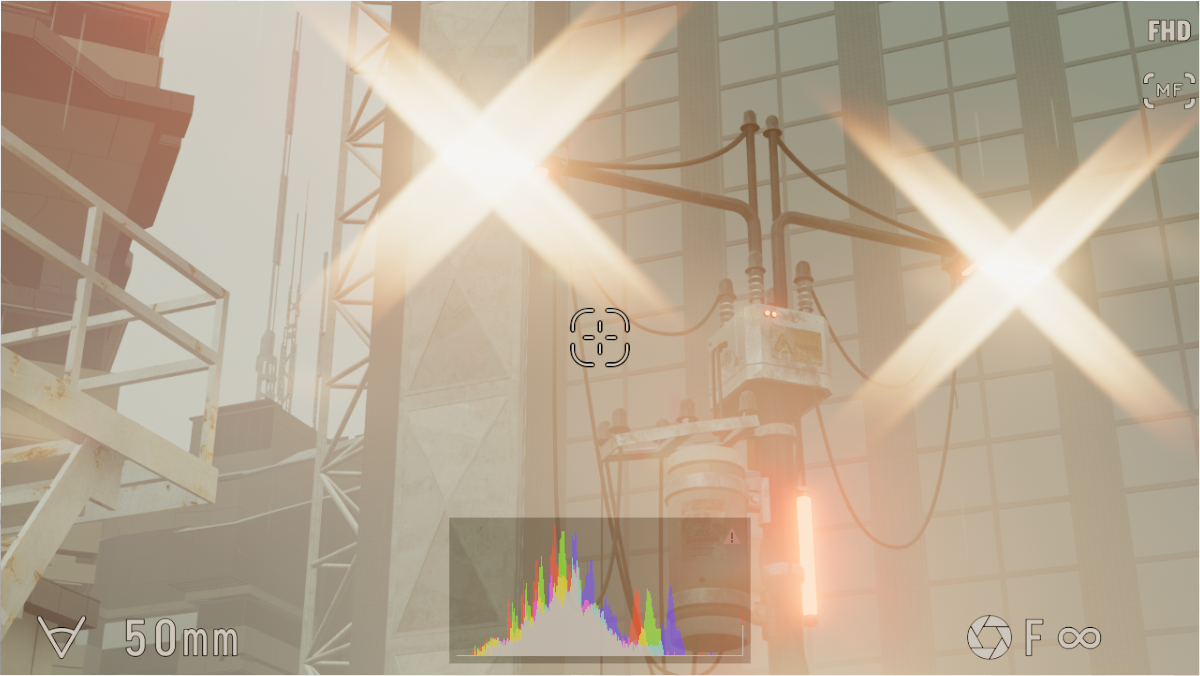
| Item | Description | Default |
|---|---|---|
 Histogram |
Shows an RGB histogram in the middle of the left edge of the screen | OFF |
 Histogram Bottom |
When on, the histogram moves to the bottom center of the screen | OFF |
 Histogram After Filters |
When on, it looks at the image after the filters (the saved photo). When off, it looks at the image before the filters. Zebra looks at the same image | OFF |
R, G and B are drawn on top of each other. Where two colors overlap they show as yellow, cyan or magenta; where all three overlap, gray.
Warnings for crushed blacks (left) and clipped whites (right) appear in the top corners of the histogram. When 0.5% or more of all pixels have a color at 0 or 255, the warning lights in that color. Near 0.5% it lights faintly.
Before and after filters
Comparison with Histogram After Filters off and on. When on, the measurement includes light rays and glow from the filters.
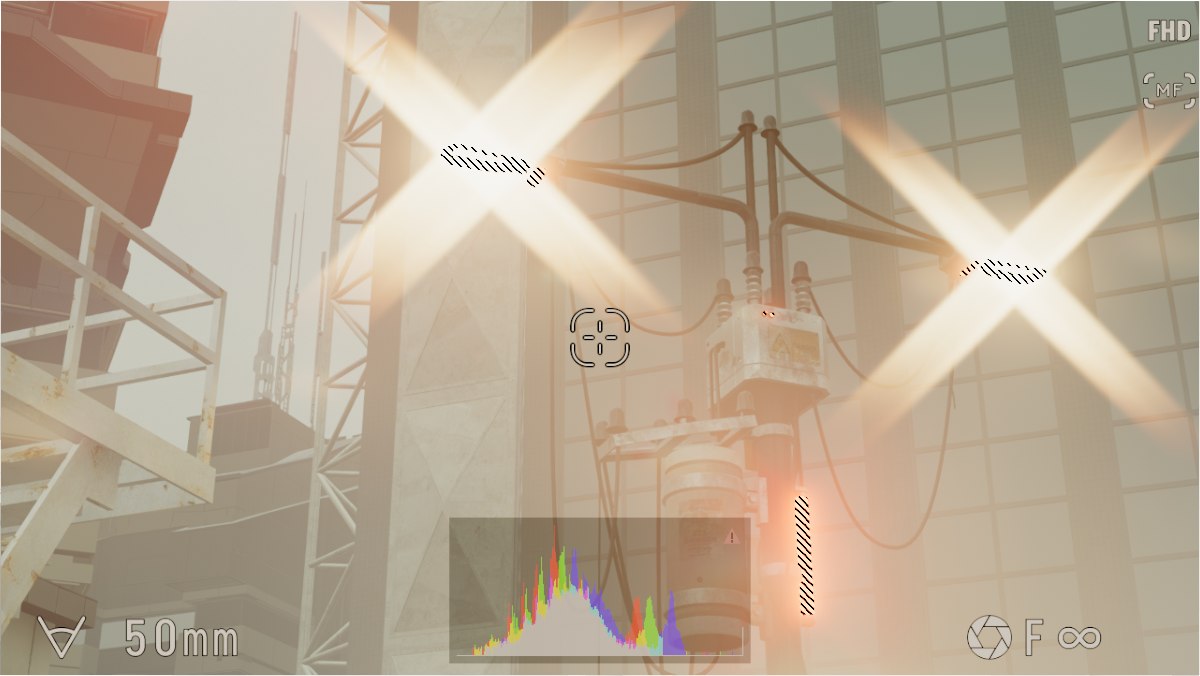
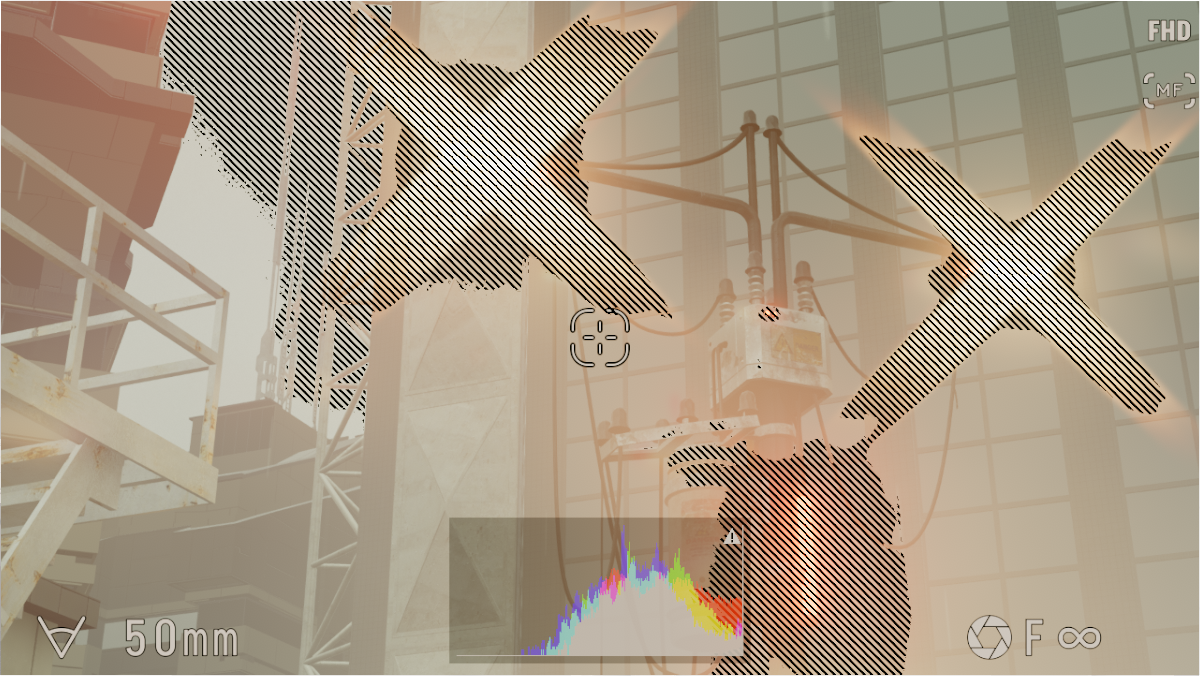
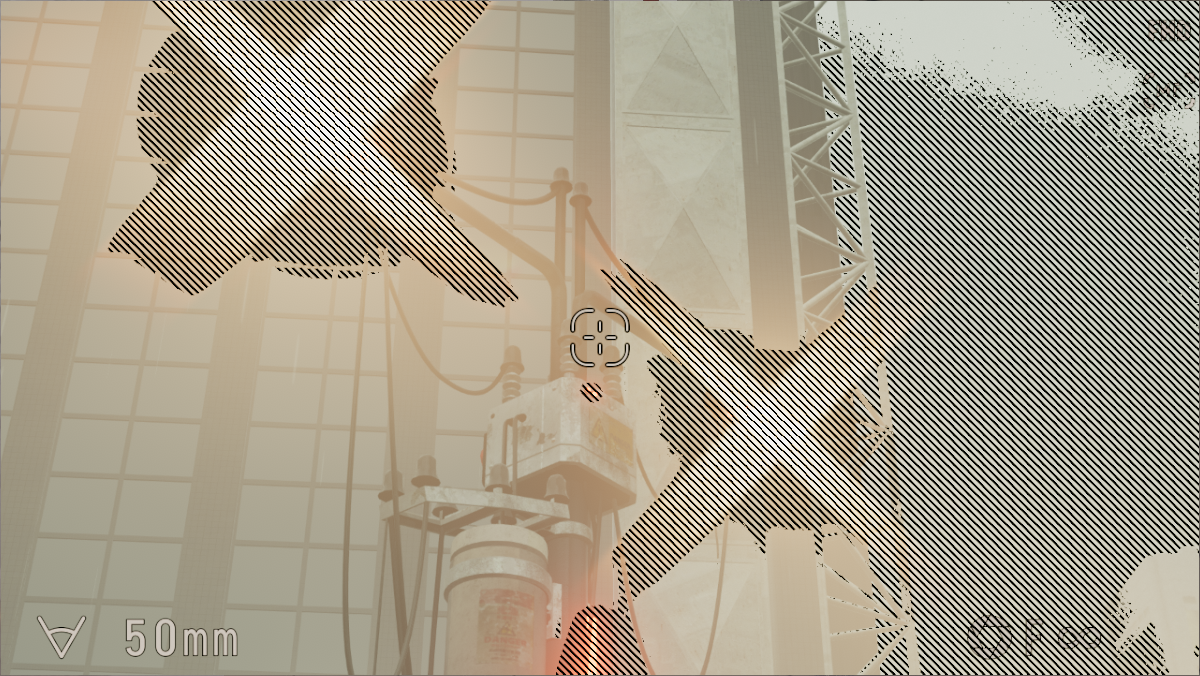
Zebra
Choose a level in More > Monitor > Zebra to show diagonal stripes over the parts at that brightness. Press the chosen level again to hide them.
| Item | Description | Default |
|---|---|---|
 70% |
Parts around 70% brightness (±5%) | OFF |
 80% |
Parts around 80% brightness (±5%) | OFF |
 90% |
Parts around 90% brightness (±5%) | OFF |
 100%+ |
Parts where R, G or B clips to white | OFF |
 Opacity |
Higher makes the stripes clearer | 90% |
Zebra does not mark crushed blacks. Check them with the histogram warning.