Watermark
Puts a watermark in a corner of the VirtualLens 2 screen and the photo.
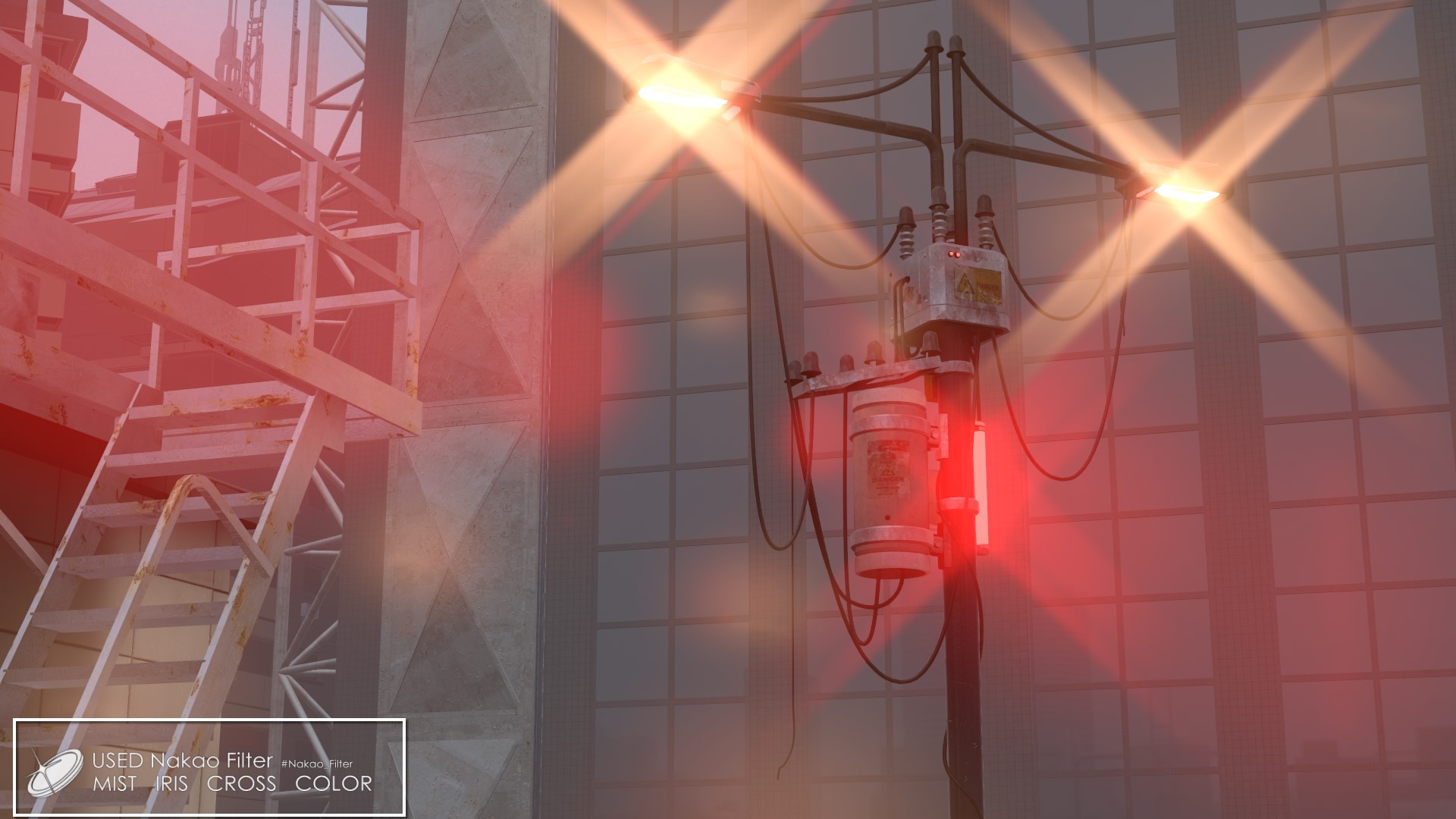
[logo]  Used #Nakao_Filter   41mm  F 2.2
[logo]  MIST • IRIS • CROSS
- The f-number on the first line is the VirtualLens 2 aperture. It is hidden when bokeh is off (F ∞).
- The second line lists only the filters that are on at that moment.
- When no filter is on, the watermark is not shown.
- The watermark is affected by the world's post-processing. In some worlds, its colour or look may change.
| Item | Description | Default |
|---|---|---|
 Enable Enable |
Turns the watermark on and off. It appears on both the screen and the photo | OFF |
 Position Position |
Bottom Right / Bottom Left / Top Right / Top Left | Bottom Left |
 Inset Inset |
Higher moves the watermark toward the center. A world's chromatic aberration is strongest in the corners, so use this when the color fringing stands out | 0% |
 Size Size |
Height of one line (1% to 5% of the screen height) | 40% |
 Opacity Opacity |
Higher makes the watermark clearer | 85% |
 Focal Length Focal Length |
When on, the first line also shows the focal length (for example 41mm) | OFF |
 F-Number F-Number |
When on, the first line shows the f-number (for example F 2.2) | ON |
Using your own image
Put an image in Watermark Image of "Nakao Filter Setup" on the prefab, and it is used instead of the bundled one. When empty, the bundled image is used.
Watermark/NakaoFilter_Watermark_Template.png has a guide showing where each row goes. Use it as a model.
Make the image a square transparent PNG (1024×1024 recommended; 2048×2048 and similar also work). Divide it into 16 rows and draw from the top as follows.
| Row | Content |
|---|---|
| Rows 1–2 | Logo (two lines high) |
| Row 3 | Base text (for example Used #Nakao_Filter) |
| Row 4 | F |
| Row 5 | mm |
| Row 6 | Digits. Divide the row into 12 cells and put 0–9 and "." one per cell (cell 12 stays empty) |
| Row 7 | MIST |
| Row 8 | IRIS |
| Row 9 | CROSS |
| Row 10 | DIRECTIONAL |
| Row 11 | COLOR (Color Grading) |
| Row 12 | Separator (for example •). Leave it empty for no separator, only spacing |
| Rows 13–16 | Empty (not used) |
- Horizontal position inside a row or cell is free. The drawn area is measured automatically at upload and lined up.
- Leave a little space above and below each row so neighboring rows do not bleed.
- Empty rows are not shown. With an empty logo, only the text appears.
- In the image settings, turning on "Alpha Is Transparency" and setting "Wrap Mode" to Clamp gives clean edges.
If Streaming Mip Maps is off on your image, it is turned on automatically at upload. VRChat requires it for uploading.
Adjusting spacing and position
Watermark Layout in "Nakao Filter Setup" adjusts the spacing and vertical position of the text. Values are pixels on a 1024×1024 image (one line = 64).
| Item | Description |
|---|---|
| Group Gap | Between the base text, the focal length and the f-number |
| After F | Between "F" and the digits |
| Digit Spacing | Spacing of the digits, "." and "mm" |
| Separator Gap | Either side of the separator (if the separator row is empty, the gap between filter names) |
| Logo Gap | Between the logo and the text |
| Line Gap | Extra space between the first and second lines |
| Logo Scale / Logo Offset | Size / vertical position of the logo |
| Base / F / Mm / Digit / Label / Separator Offset | Vertical position of each (+ is up) |
| Margin X / Margin Y | Distance from the edge of the screen |
Watermark Preview at the bottom of the Inspector shows it with the same drawing as on the avatar. The focal length, f-number and so on are sample values. Reset Layout returns to the defaults.